Disclosure: this article contains affiliate links. If you buy through them, DIGITAL WOXTER TECHNEWS may earn a commission at no extra cost to you. Our picks are based on specifications, prices and published reviews, not on payments. As an Amazon Associate I earn from qualifying purchases.
If you work from home, your desk is your office, your meeting room and, some evenings, your cinema. Three gadgets make the biggest difference to how that desk feels: light that doesn’t tire your eyes, a camera that makes you look like yourself on calls, and a dock that turns a laptop into a full workstation with a single cable. Here are the high-tech picks that independent reviewers rate most highly in 2026.
How we compared: we did not test these gadgets ourselves. This guide is based on manufacturer specifications and on published, hands-on reviews by independent outlets (How-To Geek, Notebookcheck, TechRadar, Tom’s Guide, Laptop Mag, Windows Central and StorageReview), all linked below. Price ranges: Budget = under $100, Mid-range = $100-300, Premium = over $300. Prices change often, so use the Amazon links in each section to see today’s price.
Quick picks
| Gadget | Our pick | Why it’s high-tech | Price range |
|---|---|---|---|
| Monitor light bar | BenQ ScreenBar Halo 2 | Lights the desk without screen glare, plus a backlight for the wall; motion sensor and auto-dimming | Mid-range |
| 4K webcam | Logitech MX Brio | 4K video from a large 8.5 MP sensor, adjustable field of view, built-in privacy shutter | Mid-range |
| Laptop dock | CalDigit TS5 Plus | Thunderbolt 5, 20 ports, up to four displays, 10 Gb Ethernet, 140 W laptop charging | Premium |
Specs come from the manufacturers and the reviews linked in each section.
Monitor light bar: BenQ ScreenBar Halo 2
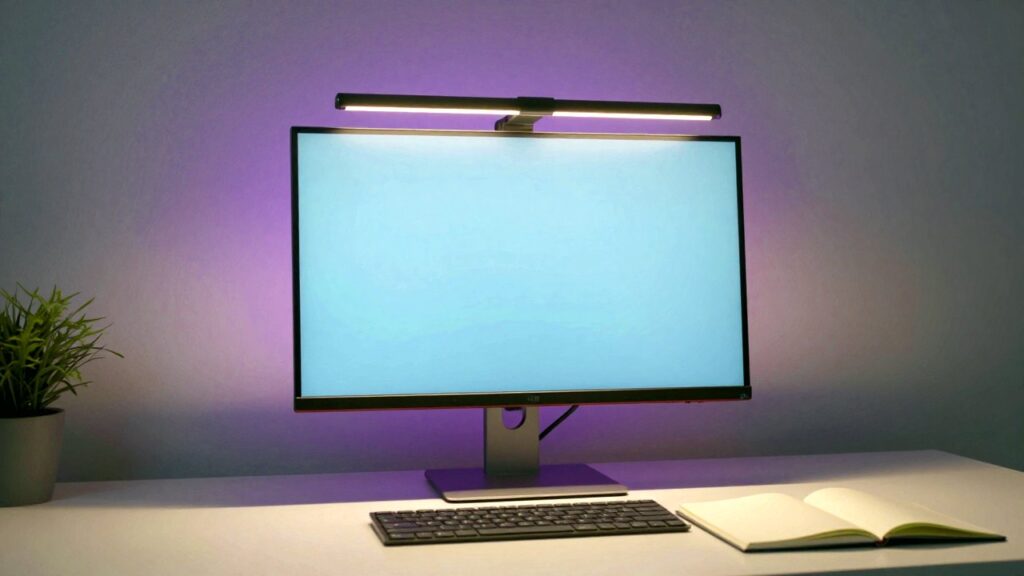
A monitor light bar clips onto the top of your screen and shines down onto the desk, not onto the screen, so you get light for notes and keyboard without reflections. The BenQ ScreenBar Halo 2 is the one reviewers keep coming back to. According to BenQ, its colour temperature runs from warm 2,700 K to cool 6,500 K with stepless dimming, and a three-zone backlight washes the wall behind the screen. That backlight is the clever bit: it softens the harsh contrast between a bright screen and a dark room late at night.
It clamps onto flat and curved monitors, and a wireless, rechargeable controller lasts up to about three months per charge. How-To Geek calls it the best monitor-mounted desk light and praises its wide front and rear lighting, motion detection that switches it on when you sit down, and good auto-dimming. Notebookcheck found the light pleasant and free of screen reflections, and the setup easy.
Pros: no glare on the screen; backlight for evening work; motion sensor and auto-dimming; fits curved monitors. Cons: pricey for a lamp (Notebookcheck); no cable included to charge the controller, which can be slow to wake (How-To Geek).
Who it’s for: anyone who works late in a dim room or has a curved monitor. Not for: tight budgets: simpler light bars without the backlight or wireless controller cost much less.
4K webcam: Logitech MX Brio
Laptop cameras are often the weakest part of a video call. The Logitech MX Brio records 4K at 30 frames per second or Full HD at 60, using an 8.5-megapixel Sony STARVIS sensor (a sensor family designed to cope well in low light), with two noise-reducing microphones and a built-in privacy shutter, according to TechRadar. You can set the field of view to 65, 78 or 90 degrees, notes Tom’s Guide, so it can frame just your face or a whole whiteboard.
The reviews are positive with clear caveats. TechRadar praises its exceptional 4K video, AI image enhancement and privacy shutter, but finds the microphones only average and the price high. Tom’s Guide names it the best Logitech webcam for its very good image and easy setup, while noting it warms up in long sessions and is on the heavy side. Laptop Mag highlights strong low-light video, but says the AI framing can lag.
Pros: sharp, natural image; good in dim rooms; flexible framing; privacy shutter. Cons: average microphones; heavy; AI framing can lag.
Who it’s for: people on video calls every day, teachers and presenters. Not for: frequent travellers (it’s heavy), or anyone who wants a camera that physically follows them around the room: Tom’s Guide points to motorised tracking webcams for that.
Tip: 4K needs a USB 3.0 connection or better; on an older USB 2.0 port the camera still works, but not in 4K, as Logitech support explains.
Laptop dock: CalDigit TS5 Plus
A dock is the “one cable” trick: plug in your laptop and it is instantly connected to monitors, keyboard, drives, network and power. The CalDigit TS5 Plus is a Thunderbolt 5 dock (Thunderbolt is a fast connection that shares the USB-C shape) with 20 ports, 80 Gb/s of bandwidth in each direction, a boost mode up to 120 Gb/s for displays, support for up to four monitors, a 10 Gb Ethernet port and up to 140 W of laptop charging, according to CalDigit.
TechRadar gave it an Editor’s Choice for its huge choice of ports, balanced power and bandwidth and solid build, while noting it is expensive, always needs mains power and has no HDMI port. Windows Central lists it as its top Thunderbolt dock overall. StorageReview adds a useful detail: the 120 Gb/s boost only applies to displays, leaving 40 Gb/s for everything else.
Pros: enormous port choice; fast networking; strong laptop charging; well built. Cons: expensive; needs its own power supply; no HDMI (you’ll need adapters or DisplayPort/Thunderbolt monitors).
Who it’s for: owners of Thunderbolt 4, Thunderbolt 5 or USB4 laptops running several monitors, fast external drives or a wired network. Not for: a simple one-monitor setup, where a smaller USB-C hub does the job for far less.
Tip: the dock charges at up to 140 W. If your laptop’s own charger is more powerful than that, it will charge more slowly through the dock, and you need a Thunderbolt 5 laptop to use the 120 Gb/s display boost (CalDigit, Windows Central).
Buying tips for a better home office
- Light first, camera second: good, even light on your face and desk improves any webcam image and is kinder to your eyes.
- Check your ports: look up whether your laptop’s USB-C port supports Thunderbolt or USB4 before buying a Thunderbolt dock, and use a USB 3.0 port for a 4K webcam.
- Buy what you’ll use: the dock above is brilliant for multi-monitor power users, but most people with one screen need far less.
FAQ
Will a light bar reflect on my screen? Light bars are designed to aim light at the desk, not the screen, and Notebookcheck saw no reflections with the Halo 2.
Do I need 4K for video calls? Not necessarily: the MX Brio also films Full HD at 60 frames per second. The 4K sensor mainly helps when you narrow the field of view to frame just your face and still want a sharp picture.
Does the CalDigit dock work with Windows laptops? Yes, with Thunderbolt or USB4 laptops; the full Thunderbolt 5 speed needs a Thunderbolt 5 laptop.
Read next
- Smart home gadgets 2026: Matter plug, Hue bulb and AI doorbell
- Home climate gadgets: Dyson hot+cool, Nest and a silent purifier
- What are AI TOPS? The number on every new laptop, explained
Show sources (11)
- ScreenBar Halo 2 product page – BenQ, accessed 20 October 2026
- BenQ ScreenBar Halo 2 review – How-To Geek, 14 July 2025
- BenQ ScreenBar Halo 2 review – Notebookcheck, 27 June 2026 (updated 5 October 2026)
- Logitech MX Brio webcam review – TechRadar, 1 July 2024
- The best webcams – Tom’s Guide, updated 28 August 2026
- Logitech MX Brio 4K webcam review – Laptop Mag, 8 March 2024
- Can I use any type of cable to connect my MX Brio? – Logitech Support, accessed 20 October 2026
- Thunderbolt 5 Dock TS5 Plus – CalDigit, accessed 20 October 2026
- CalDigit TS5 Plus docking station review – TechRadar, 20 July 2025
- Best Thunderbolt docks – Windows Central, updated 9 February 2026
- CalDigit TS5 Plus review – StorageReview, 19 August 2025