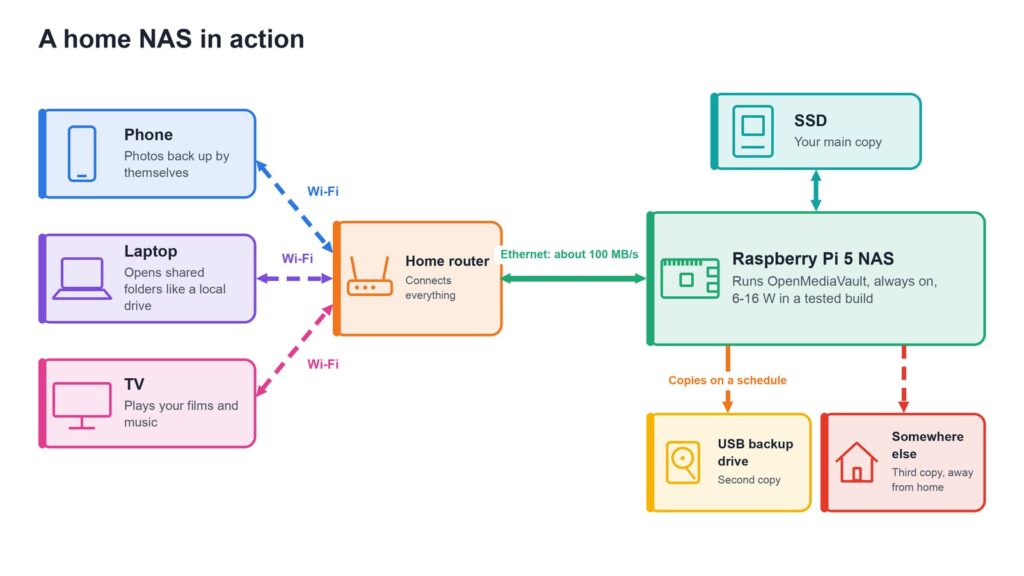
Tired of paying for cloud storage? A NAS (network-attached storage, a small always-on computer that keeps your files and shares them around the house) can be a lovely weekend project. So which board should run it: Raspberry Pi or Arduino? The short answer is Raspberry Pi 5. Arduino’s newest boards are clever, but nobody we could find has proved them as a NAS.
Why it matters: your photos and backups stay at home, with no monthly fee. Pick the wrong board, though, and you’ll fight it for weeks. Here’s how they compare, based on published tests and official specifications. We did not build these ourselves.
Raspberry Pi vs Arduino: head to head
| Raspberry Pi 5 | Arduino UNO Q | Arduino Ventuno Q | |
|---|---|---|---|
| Processor | Four Cortex-A76 cores at 2.4 GHz | Four Cortex-A53 cores at 2.0 GHz | Eight-core Qualcomm chip |
| Memory | 1 to 16 GB | 2 or 4 GB | 16 GB |
| Fast storage | One PCIe lane, through an add-on board | USB through a dongle | One short NVMe drive (can’t boot from it) |
| Network | Gigabit Ethernet | No Ethernet port, Wi-Fi 5 | 2.5 Gigabit Ethernet |
| Drives | Up to 5 SATA with an add-on | USB only | 1 NVMe, plus USB |
| NAS software | OpenMediaVault 8 | No test found | No test found |
| Measured NAS speed | 96-122 MB/s on Gigabit | None found | None found |
| Board price range | Mid-range | Budget | Premium |
| Verdict | Yes | No | Possible, but poor value |
Price ranges: Budget = under $100, Mid-range = $100-300, Premium = over $300. Speeds come from Jeff Geerling’s 2024 test. The Arduino boards’ “none found” is deliberate: we won’t guess a number nobody has measured.
Why classic Arduino can’t do it
A classic Arduino is a microcontroller: a tiny chip that runs one program, with no Linux, so it can’t host a shared folder for your laptop. The newer UNO Q and Ventuno Q are different, because they run Linux alongside the microcontroller.
Even so, the UNO Q is the wrong shape for storage, with no Ethernet port, no M.2 slot and a single USB-C port. The Ventuno Q looks much better on paper: built-in 2.5 Gigabit Ethernet and a storage link faster than a stock Pi 5’s. But it takes one short drive, it can’t boot from it, it costs far more, and it was built for AI and robots. We found no real NAS test. A fun idea, not a recommendation.
Arduino still has a job here: a classic board makes a charming little status display or temperature sensor beside your NAS.
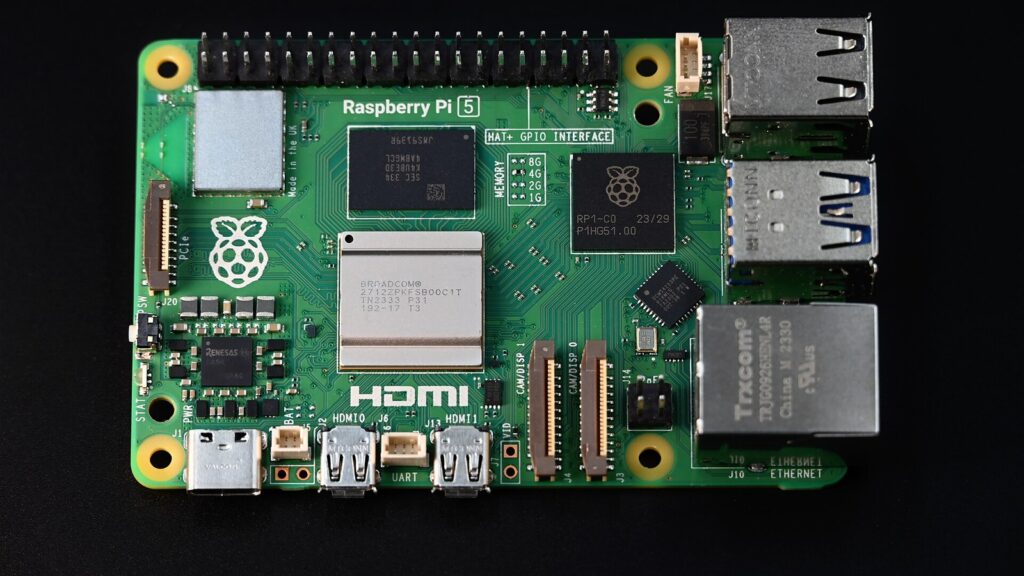
What the Raspberry Pi 5 can really do
The best published numbers come from Jeff Geerling, who tested a Pi 5 with a Radxa Penta SATA HAT and four SSDs in April 2024:
- Gigabit network: about 122 MB/s reads and 96-115 MB/s writes. That’s roughly a 1 GB film file every 8 to 10 seconds.
- 2.5 Gigabit add-on: about 230 MB/s reads and 100-150 MB/s writes.
- ZFS RAIDZ1 (a way of spreading data so one drive can fail): about 74-108 MB/s writes.
- Power: 6-8 W idle and 10-16 W under load, about what one or two LED bulbs use.
These figures are from one tester and more than two years old, so treat them as a guide. People often worry that the Pi has only one PCIe lane, but on Gigabit it barely matters: the network runs out long before the lane does.
The best way to build one
Beginner: a Pi 5, one NVMe SSD on a small add-on board, and OpenMediaVault 8, a free NAS system you run from a web page. Add a USB drive for backups. There’s little to go wrong.
Advanced: a Pi 5 with 8 GB, the Radxa Penta SATA HAT and four SATA SSDs. It can survive a failed drive, but it’s much more fiddly. We prefer SSDs here, because Radxa’s limit of 2.2 A per drive adds up quickly with big spinning disks.
| USB drives | One NVMe SSD | Two NVMe SSDs | Radxa Penta HAT | |
|---|---|---|---|---|
| Drives | Up to 2 | 1 | 2 | 4, plus 1 eSATA |
| Setup time | About 1 hour | 1-2 hours | 2-3 hours | Half a day |
| Difficulty | Easiest | Easy | Medium | Medium to hard |
| RAID options | Not advised | None | RAID 0 or 1 | RAID 0, 1 or 5, spare possible |
| Max capacity | Depends on the drive | 4 TB shown working | Size of one drive, as a mirror | 32 TB tested |
| Recommended capacity | 1-2 TB | 1-2 TB | Two of 1-2 TB | Four of 1-2 TB |
| Speed (read / write) | About 120 / 120 MB/s at most* | About 120 / 120 MB/s at most* | About 120 / 120 MB/s at most* | 122 / 96-115 MB/s |
| Price range | Mid-range | Mid-range to Premium | Premium | Premium |
| Best for | Trying it out | Beginners | A small mirror | Advanced builders |
* That’s the Gigabit network limit: we found no NAS test of these routes. With the drive alone, the one-SSD build can peak at 700-800 / 350-450 MB/s in Gen 3 mode, which Raspberry Pi doesn’t officially support, and two SSDs share about 450 MB/s. The Radxa figures are Gigabit results; a 2.5 Gigabit add-on reached 230 / 100-150 MB/s. Its 32 TB test used four 8 TB SSDs, or about 24 TB usable with one-drive protection. Setup time, difficulty and recommended capacity are our own estimates for a first-timer, and price ranges exclude a backup drive.
Skip TrueNAS for now: official builds are x86 only, and an unofficial Arm port doesn’t run the Pi 5’s built-in Ethernet. Photo app Immich wants at least 6 GB of memory, so choose 8 GB if you plan to use it. And Jellyfin has no hardware encoding on the Pi 5, so films play best in their original format.
RAID 0, 1 and 5 explained
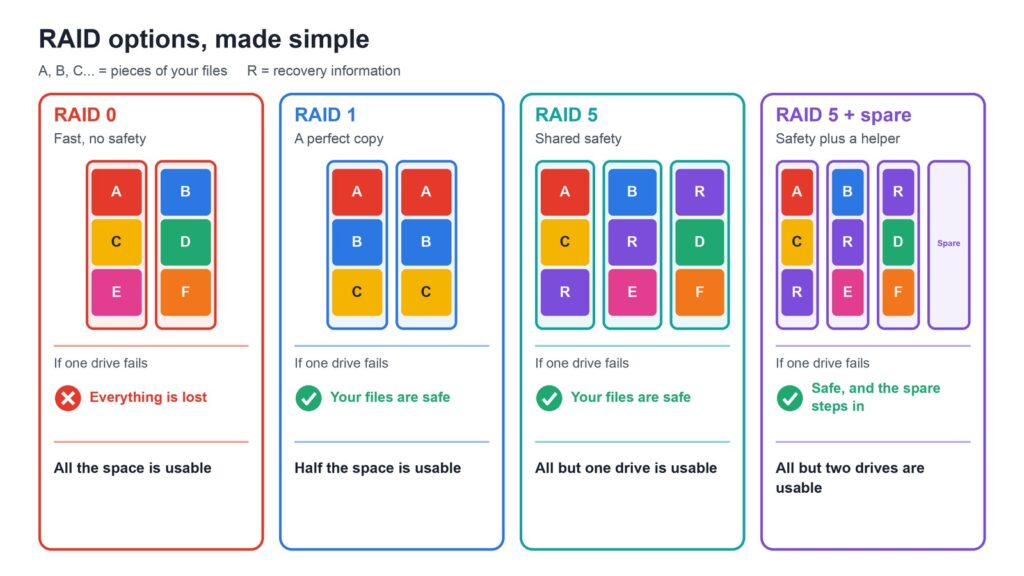
RAID combines several drives so they work as one. It sounds complicated, but each level is a simple trade between speed, space and safety. The examples use four 2 TB SSDs in the Radxa build, which supports RAID 0, 1 and 5 through software.
| Level | What it does | Drives needed | Usable space, four 2 TB drives | Drives that can fail |
|---|---|---|---|---|
| RAID 0 | Splits data across drives for speed and space | 2 or more | 8 TB | None: lose one, lose everything |
| RAID 1 | Mirrors the same data on two drives | 2 | 2 TB per pair | 1 in each pair |
| RAID 5 | Spreads data plus recovery information | 3 or more | 6 TB | 1 |
| RAID 5 plus a spare | Three drives working, one waiting | 4 | 4 TB | 1, then the spare takes over |
What’s a spare drive? It’s an extra drive that sits idle until another one fails. With ZFS, a hot spare replaces the failed drive automatically, and Linux’s mdadm can also set up spares in an array. The array then rebuilds itself, so you’re protected again sooner. The price is space: that drive stores nothing until it’s needed. ZFS RAIDZ1, used in the tests above, works like RAID 5.
Which should you choose? For one SSD, there’s no RAID at all, and that’s fine with a good backup. For two drives, RAID 1 is the safe choice. For four drives, RAID 5 gives the best balance, and a spare suits a NAS you can’t reach quickly when something fails. Avoid RAID 0 for anything you care about, and avoid RAID over USB drives. In Geerling’s 2024 test, OpenMediaVault 7 didn’t offer the usual RAID options with this board, so check your version first.
When a Pi isn’t the answer
If you want films converted on the fly, lots of apps or plenty of memory, a small Intel N100 mini PC is often the better buy. In January 2026, Geerling found that a 16 GB Pi 5 kit with NVMe cost about the same as one. The Pi wins for a small, frugal file server, and for the fun of building it.
Don’t skip this: a NAS is not a backup
RAID keeps you running when a drive dies, but it won’t save a file you delete by accident. Follow the 3-2-1 rule: three copies, on two kinds of storage, with one somewhere else. We’d also keep your NAS off the public internet unless you know how to secure it.
What happens next
Ready to start? Our Raspberry Pi NAS parts list shows what to buy for both builds. And if someone tests a Ventuno Q as a NAS, we’ll happily update this comparison.
Read next
- Arduino Ventuno Q: the board that gives robots eyes and a brain
- Use your Raspberry Pi as an AI image generator
The week's best tech stories, free
One email a week with the stories that matter, explained simply. No spam.
Sources
- Radxa’s SATA HAT makes compact Pi 5 NAS – Jeff Geerling, 4 April 2024
- Testing PCIe on the Raspberry Pi 5 – Jeff Geerling, 28 September 2023
- Raspberry Pi is cheaper than a Mini PC again – Jeff Geerling, 5 January 2026
- UNO Q – Arduino, consulted 4 November 2026
- VENTUNO Q datasheet – Arduino, modified 3 November 2026
- Penta SATA HAT docs – Radxa, consulted 4 November 2026
- Install on Debian – openmediavault, consulted 4 November 2026
- TrueNAS on 64-bit Arm – CNX Software, 23 August 2025
- Requirements – Immich, consulted 4 November 2026
- Hardware Acceleration – Jellyfin, consulted 4 November 2026
- NVMe Base Duo – Pimoroni, consulted 4 November 2026
- Pimoroni NVMe Base review – Tom’s Hardware, consulted 4 November 2026
- NVMe Base – Pimoroni, consulted 5 November 2026
- zpoolconcepts – OpenZFS, consulted 5 November 2026
- mdadm manual – man7.org, consulted 5 November 2026
- Penta SATA HAT – Radxa, consulted 5 November 2026
- The 3-2-1 backup strategy – Backblaze, consulted 4 November 2026