
Every website you visit starts with a little question your device asks out loud: “where is this site?” By default that question goes to your internet provider, which can see every name you look up. On a café, hotel or airport Wi-Fi, whoever runs the network can often see it too. One free, easy change can make that trail much shorter, wherever you live.
That change is Quad9, a free service at the easy-to-remember address 9.9.9.9. It doesn’t keep your IP address, it can encrypt your lookups so nobody on the way can read them, and it quietly refuses to take you to phishing, malware and scam sites. It runs on six continents, and you can switch any phone, computer or home router to it in about two minutes. Here’s what Quad9 is, how to get the most privacy out of it, where it works and where it comes from.
What is Quad9, and what is it for?
Every time you open a website, your device first asks a DNS server a simple question: “what is the address of this name?” It’s the internet’s phone book. Most people use the one their internet provider gives them without knowing it.
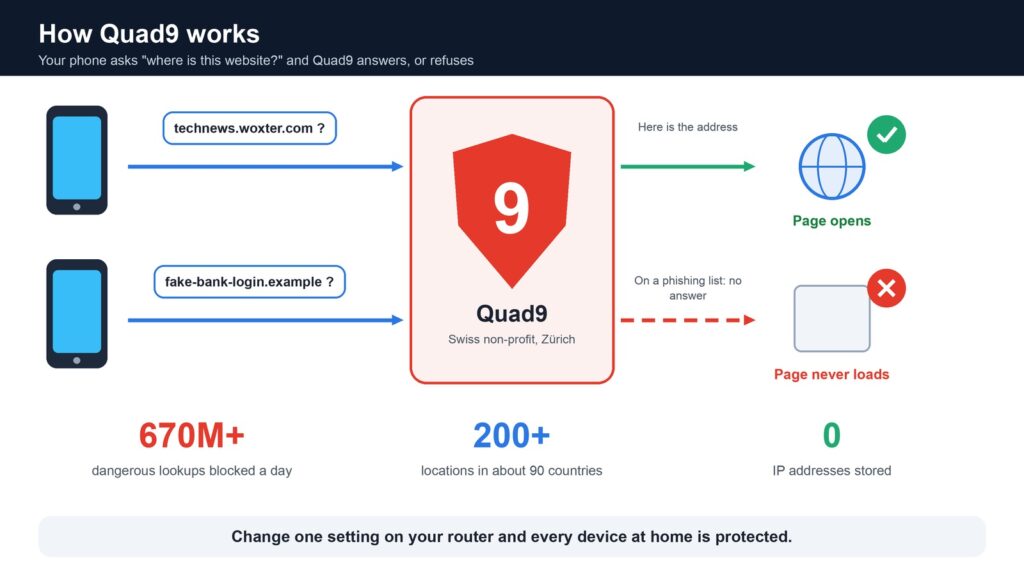
Quad9 is a free public DNS run by a Swiss non-profit foundation in Zürich. It does three things your provider’s DNS usually doesn’t:
- It doesn’t keep your IP address. Its privacy policy says it “does not collect or record user IP addresses” and follows Swiss law and the GDPR, Europe’s data protection rules.
- It blocks dangerous sites. When a name is on the lists of more than 25 threat-intelligence partners (phishing, malware, scams), Quad9 simply doesn’t answer, so the page never loads.
- It checks answers are genuine. Since April 2026 every Quad9 address validates DNSSEC (digital signatures on DNS answers), which spots forged replies.
What your DNS says about you
A list of the names you look up is a surprisingly personal diary: your bank, your doctor’s booking site, the news you read, the apps on your phone, what time you wake up and go to bed. Classic DNS travels unencrypted, so your provider and the owner of the Wi-Fi you’re on can read it as it passes.
Quad9 is built to keep that diary short:
- No IP address stored. Quad9 answers your question and doesn’t link it to you.
- Swiss law, for everyone. In February 2021 the foundation moved from California to Zürich so that Swiss data protection law would cover every user, whatever their country. Switzerland also decided not to treat Quad9 as a telecoms operator, so it isn’t required to record who it serves.
- Encryption on offer. With DNS over HTTPS or DNS over TLS (see below), the question travels inside an encrypted tunnel: your provider and the Wi-Fi owner see that you’re talking to Quad9, but not what you ask.
Get the most privacy from Quad9
- Use the encrypted version. The secure name is dns.quad9.net and the DNS over HTTPS address is https://dns.quad9.net/dns-query. Plain 9.9.9.9 still keeps your IP address out of Quad9’s records, but it isn’t encrypted on the way.
- Pick 9.9.9.9, not the ECS version. ECS (9.9.9.11) passes a rough part of your network address to websites so they can choose a nearby server. Handy for speed, a little less private.
- Turn it on in your browser too. In Chrome or Edge: Settings › Privacy and security › Security › Use secure DNS › choose Quad9 if it’s listed, or Custom and paste the address above. In Firefox: Settings › Privacy & Security › DNS over HTTPS › Increased or Max Protection › Choose provider › Custom.
- Check it works. Quad9’s own test page, dns.quad9.net/dns-check, tells you whether you’re using it.
- Add a VPN for the full tunnel. Quad9 hides your questions; a VPN also hides which servers you then connect to (more on that below).
Where does Quad9 work?
Almost everywhere. Quad9 answers from more than 200 locations in about 90 countries on six continents, and your device automatically reaches the nearest one. It blocks, on average, more than 670 million dangerous lookups a day. In the first half of 2026, phishing and scam domains alone were blocked about 4.7 billion times.
- Europe and North America: the densest part of the network.
- Latin America: since 2023 Quad9 has servers in São Paulo and Rio de Janeiro (Brazil), Bogotá (Colombia), Santiago (Chile) and Lima (Peru), so lookups from there usually stay in the country instead of travelling to Miami or New York.
- Asia, Africa and Oceania: covered too, with fewer locations. If pages feel slow where you live, the ECS address can help, at a small cost in privacy.
How did it become a global system?
Quad9 started in 2016 as a project of two non-profits: Packet Clearing House (PCH), which runs internet infrastructure all over the world, and the Global Cyber Alliance. In 2017 IBM joined, bringing threat intelligence and handing over the easy-to-remember 9.9.9.9 address. The service opened on 16 November 2017 with more than 70 locations in 40 countries.
The trick for being everywhere is called anycast: the same 9.9.9.9 address lives on hundreds of servers around the planet at once, and the network sends you to the nearest one automatically, like a phone number that always rings in the closest office. PCH provides the network, and every new city brings the service closer to more people: today there are more than 200 locations.
Who decides what your DNS answers?
Because Quad9 doesn’t know who you are or where you live, some courts find it hard to deal with:
- France: a court ordered Quad9 to block pirate sports streams for French users only. Doing that would mean working out who is French, and Quad9 won’t block for the whole world, so it leaves the country on 24 November 2026.
- Germany: Sony Music took Quad9 to court in 2021 over a music piracy site. Quad9 lost twice, then won on appeal in Dresden in December 2023 and removed the block worldwide.
- Italy: in March 2025 a Milan court ordered Google to block pirate TV sites in its public DNS, and in December 2025 Italy’s media regulator fined Cloudflare €14.2 million for refusing to filter its 1.1.1.1 resolver. Cloudflare is appealing.
Everywhere else, Quad9 keeps working exactly as before.
Which Quad9 address should you use?
| Service | Address (IPv4) | Blocks bad sites | Privacy | Difficulty |
|---|---|---|---|---|
| Recommended | 9.9.9.9 149.112.112.112 |
Yes | +++ Best for most people | |
| Unfiltered | 9.9.9.10 149.112.112.10 |
No | +++ Only if you filter elsewhere | |
| With ECS | 9.9.9.11 149.112.112.11 |
Yes | ++ Faster for some, shares part of your address |
IPv6: 2620:fe::fe and 2620:fe::9 for the recommended service. Encrypted DNS name: dns.quad9.net; DNS over HTTPS: https://dns.quad9.net/dns-query. The same addresses work in every country. Legend: easy · +++ most private · ++ a little less private.
How to switch in two minutes
The best place is your router: change it once and every device at home is covered. Look for “DNS” in its settings (often under WAN or Internet) and type 9.9.9.9 and 149.112.112.112. Some routers supplied by internet providers don’t let you; then do it device by device, and use the encrypted option wherever you see it. Menu names vary a little by brand and language:
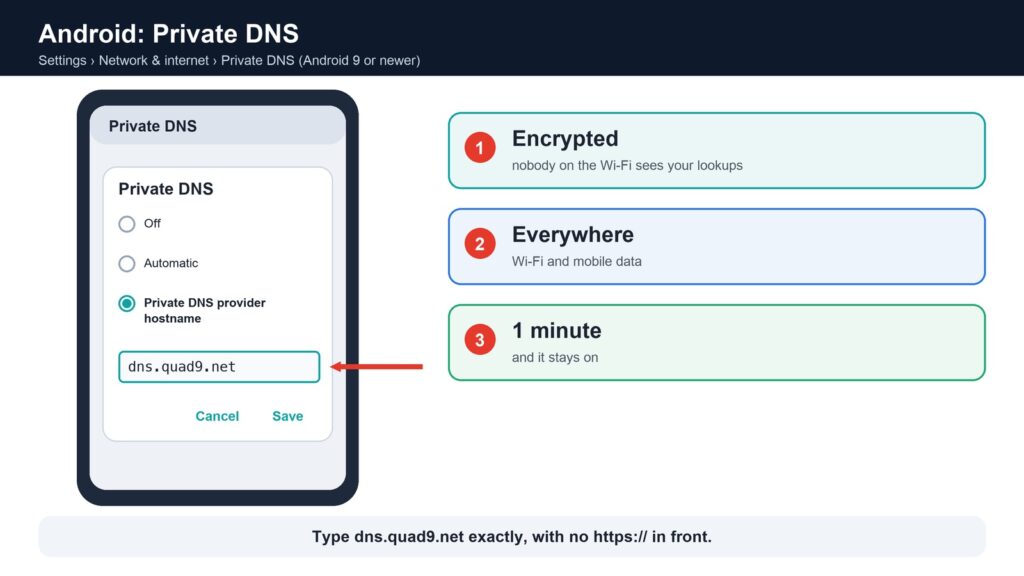
- Android (9 or newer): Settings › Network & internet (or Connections) › Private DNS › “Private DNS provider hostname” › type dns.quad9.net. This one is encrypted and works on mobile data too, even when you travel abroad.
- Windows 11: Settings › Network & internet › Wi-Fi (or Ethernet) › Hardware properties › DNS server assignment › Edit › Manual › IPv4 on, 9.9.9.9 and 149.112.112.112, and set DNS over HTTPS to “On (automatic template)”.
- Mac: System Settings › Network › Wi-Fi › Details › DNS › add 9.9.9.9 and 149.112.112.112.
- iPhone and iPad: Settings › Wi-Fi › the ⓘ next to your network › Configure DNS › Manual. Quad9 also offers a profile that encrypts DNS everywhere.
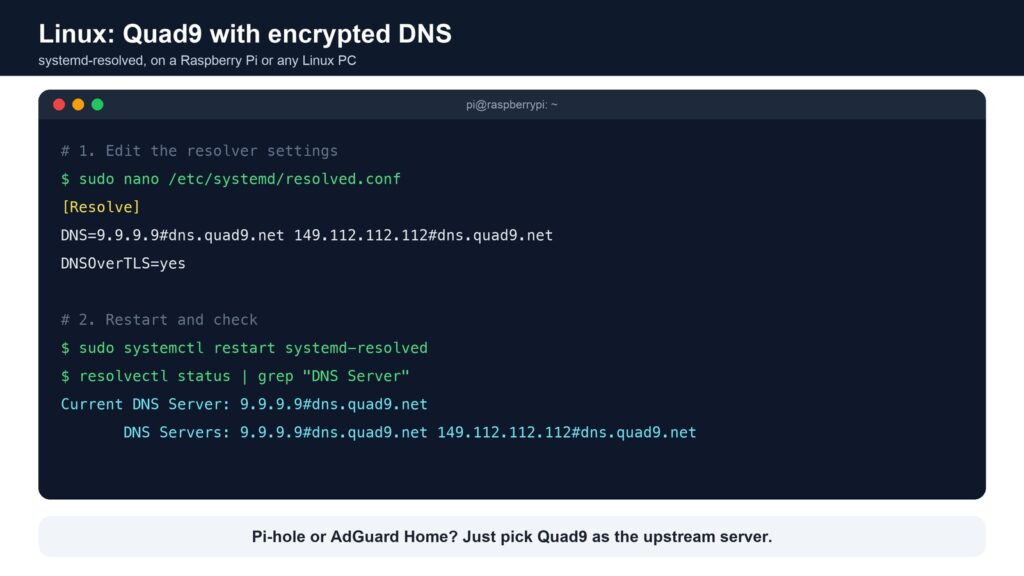
For makers: if you run Pi-hole or AdGuard Home on a Raspberry Pi, choose Quad9 as the upstream server and you get ad blocking plus Quad9’s malware blocking for the whole house. On Linux with systemd you can set DNS=9.9.9.9#dns.quad9.net and DNSOverTLS=yes in /etc/systemd/resolved.conf.
Check it works (and what to do if the test says “No”)
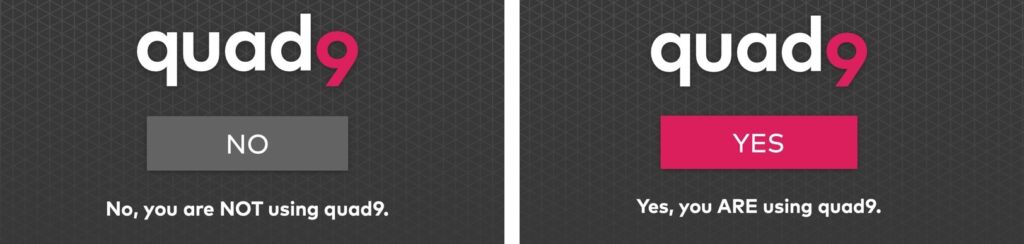
Open on.quad9.net on the device you changed. It answers Yes or No. A “No” right after the change is common and usually has a simple cause:
- A VPN is on. While a VPN is connected, your device uses the VPN’s own DNS, whatever the router says. That’s fine for privacy; pause the VPN only for the test.
- The device hasn’t picked up the new setting yet. Devices ask the router for their settings only from time to time. Turn Wi-Fi off and on, unplug the cable for a few seconds, or on a Mac use System Settings › Network › your connection › Details › TCP/IP › Renew DHCP Lease.
- Your browser has its own DNS. Firefox and Brave can use another secure DNS by default in some countries: set it to Quad9 or turn it off in the browser’s settings.
- iCloud Private Relay is on (iPhone, iPad, Mac): it sends your lookups its own way. Switch it off for the test if you want to see Quad9.
- The router didn’t save. Open its settings again and check that the DNS boxes still show 9.9.9.9 and 149.112.112.112. Don’t reset the router: a reset can wipe your changes.
Tip for homes with an operator TV box: some routers have a separate DHCP section just for the TV decoder. Leave that one as it is, so the TV keeps working while everything else uses Quad9.
What Quad9 can’t do
Quad9 is not a VPN. It hides which names you look up from your internet provider (when you use the encrypted version) and blocks dangerous sites, but your provider can still see which servers you connect to, and websites still see your IP address. If you want a fully encrypted tunnel, read our home VPN comparison. Quad9 and a VPN work well together.
What happens next
More blocking cases against DNS services are waiting in European courts, and Quad9 warns that similar ideas are being discussed in other countries. For now, privacy-minded users anywhere can switch in minutes. Watch this space: who decides what your DNS answers, and who gets to read your questions, is becoming a real internet freedom question.
Read next
- Your own home VPN: which board should run it?
- AI agent security: how AI now finds zero-day vulnerabilities
- Raspberry Pi vs Arduino: which makes the best home NAS?
The week's best tech stories, free
One email a week with the stories that matter, explained simply. No spam.
Sources
- Farewell, France – Quad9, 22 October 2026
- DNS resolver Quad9 will leave France after court orders piracy blocking penalty – TorrentFreak, 22 October 2026
- Quad9 to exit France: 9.9.9.9 DNS will be cut off on November 24 – IT-Connect, October 2026
- About Quad9 and Service addresses and features – Quad9, consulted 8 November 2026
- Privacy policy – Quad9, updated June 2026
- Am I using Quad9? (test page) – Quad9, consulted 9 November 2026
- Quad9 services: addresses, DNS over TLS and HTTPS – Quad9 docs, consulted 9 November 2026
- DoH with Quad9 DNS servers – Quad9
- Configure DNS over HTTPS protection levels in Firefox – Mozilla Support, consulted 9 November 2026
- Quad9 enables DNSSEC on all service endpoints – Quad9, 9 April 2026
- Trends H1 2026: cyber insights – Quad9, 3 August 2026
- Quad9 – Wikipedia, consulted 8 November 2026
- IBM launches Quad9, a DNS-based privacy and security service – CircleID, 16 November 2017
- Quad9 secure private DNS resolver – The Register, 20 November 2017
- Quad9 public domain name service moves to Switzerland for maximum internet privacy protection – Quad9, 17 February 2021
- Quad9 moves to Switzerland – Swiss National Cyber Security Centre (NCSC), 2021
- Quad9 selects EdgeUno for Latin America – Quad9, 2023
- Quad9 expands its DNS services in LATAM with EdgeUno – EdgeUno, 21 June 2023
- Quad9 turns the Sony case around in Dresden – Quad9, December 2023
- DNS resolver Quad9 wins pirate site blocking appeal against Sony – TorrentFreak, December 2023
- Court orders Google to poison public DNS to prevent IPTV piracy – TorrentFreak, 21 March 2025
- Cloudflare record fine: Italy’s tough anti-piracy course hits DNS resolver – heise online, January 2026
- Italy hits Cloudflare with €14 million fine over Piracy Shield non-compliance – Neowin, January 2026